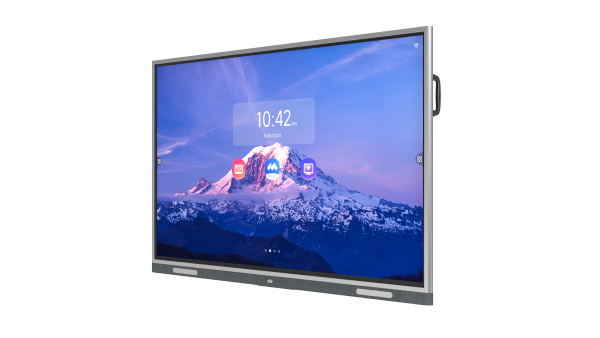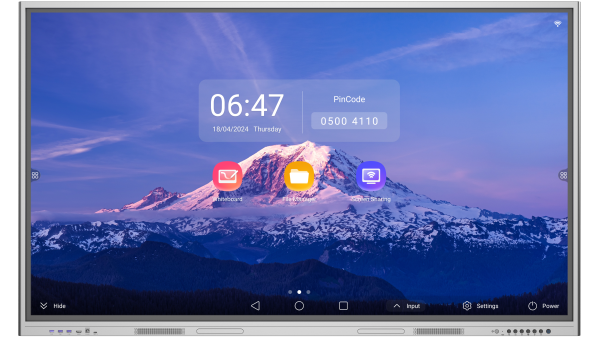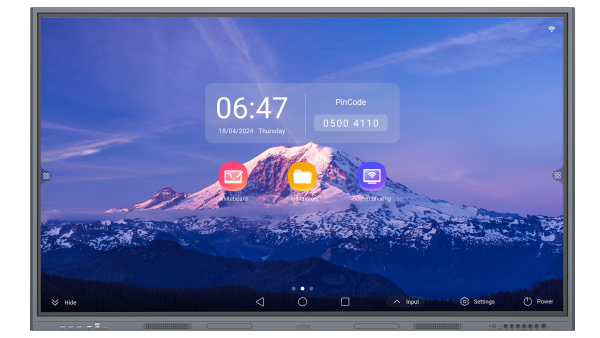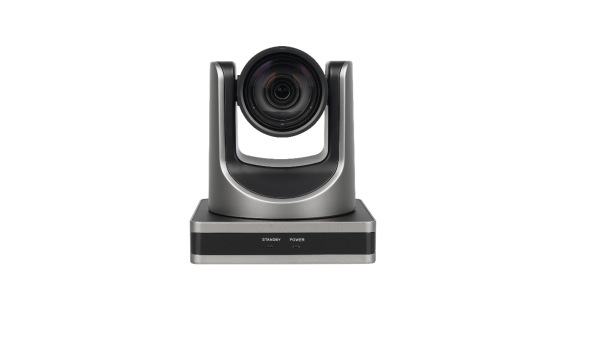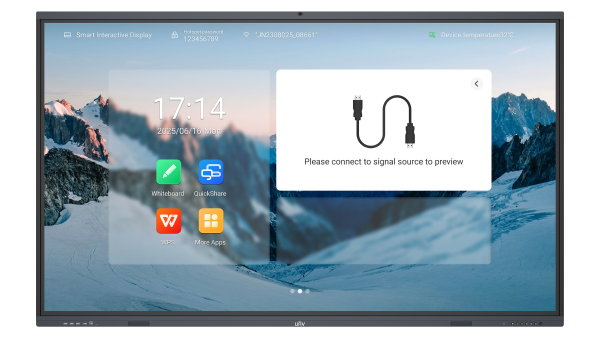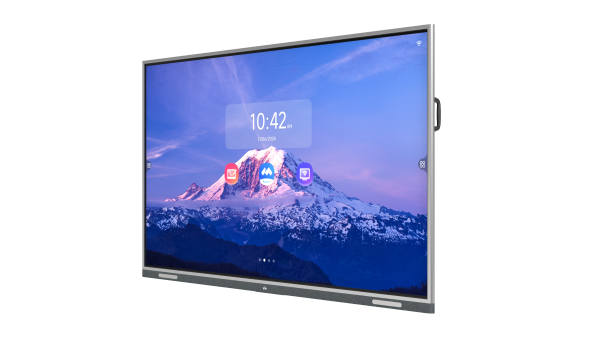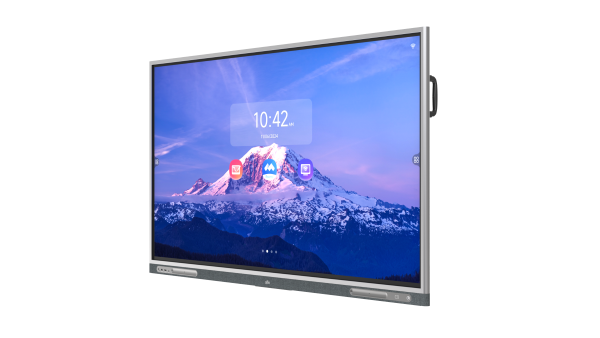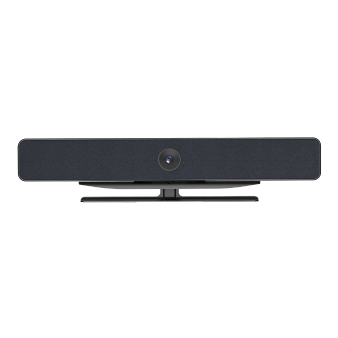
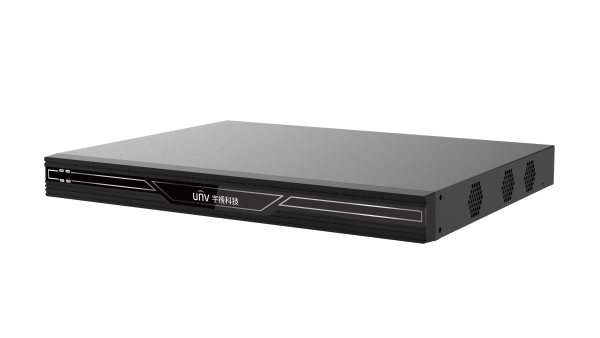
Uniview VMS-B180-A là Phần mềm/Server quản lý video thuộc dòng VMS của Uniview – VMS-B180-A Integrated Machine. Thiết bị được dùng cho quản lý tập trung hệ thống giám sát quy mô lớn.
Thông số chính của Uniview VMS-B180-A
- Bộ xử lý: High-performance Intel processor
- Bộ nhớ RAM: 4GB
- Trọng lượng: ≤4kg (without HDD)
- Statistical resource management: Supports filtering areas and channels by keyword.
Bảng thông số kỹ thuật đầy đủ
| Statistical resource management | Supports filtering areas and channels by keyword. |
|---|---|
| People counting area | Add, edit, delete people counting areas; max 8 detection areas, each area includes up to 32 channels. Configure alarms, area name, push cycle, people present alarm thresholds (critical/major/minor), and channels. |
| Crowd density detection area | Add, edit, delete crowd density monitoring areas, max 16 areas, each area allows one video channel. Configure alarms, area name, push cycle, crowd density alarm thresholds (critical/major/minor), and channels. |
| Area preview | Double-click a channel in the people counting area to view the live video in the 4-window area. |
| Realtime statistics | Displays counting results (people in/out/staying/how many more allowed) and access status on the right side and updates in real time. Crowd density (current number of people, how many more allowed), area status. |
| Reports and statistics | Count by minute/hour/day/month. Support line chart and column chart display, and display entering/leaving/staying statistics separately or in combination. Display entering/leaving/staying statistics of a certain time period or of a channel, export counting statistics. |
| Personnel information management | Add, delete persons in batches. Edit, search persons. Import/export persons; import/export departments. Issue/return cards. Add, edit, delete, search departments, import/export departments. |
| Live view | Play live video by channel or view. 1/3/4/5/6/7/8/9/10/13/16/17/25/32/36/64 image display on single screen (64-image display is not available on the local client). Custom window layout. 3/7 window layout in corridor mode; Up to 3 auxiliary monitors (not support on local client); Supports view, sequence, snapshot, digital zoom, PTZ control, patrol, fisheye, 5ePTZ, panoramic linkage, multi-sensor mode, instant playback, recording, watermark, etc. |
| Sequence | Sequence display in one window or on the entire video wall. Configure sequence resources, sequence time interval. |
| Live view snapshot | Capture the current image and save it to PC. |
| Snapshot all | Capture an image in all windows. |
| PTZ control | 1. Control pan, tilt, zoom, and rotation speed. 2. 3D positioning: Click anywhere on the live video image, and the PTZ camera will rotate in that direction. Drag from the top left to the bottom right to zoom in on the dragged area, and drag in the opposite direction to zoom out. |
| Presets and patrol | 1. Set, delete, call presets. 2. Auto guard, patrol routes. |
| Fisheye control | Multiple mount modes and display modes available. |
| 5ePTZ | Use a multi-lens camera capable of 5ePTZ to perform auto tracking. The main window shows the panoramic image and five tracking boxes, and the five small windows show the corresponding images of the tracking boxes. User can drag the tracking boxes to set tracking areas, and scroll the mouse wheel to zoom in/out. After an alarm is triggered, the target is automatically tracked in the closest tracking area. |
| Panoramic linkage | Click to link: When you click on the panoramic image, the closeup image will zoom in on the point you clicked and display it at the center of the image. Drag to zoom: When you drag on the panoramic image, the closeup image will zoom in to give you a detailed view of the specified area. Auto tracking: The camera automatically tracks an object after detection rules are triggered. Manual tracking: Track an object manually after detection rules are triggered. |
| Digital zoom | Magnifies a region of interest to the whole window. |
| Statistical information | Bit rate, frame rate, compression format, packet loss rate |
| Two-way audio in live view | Start/stop two-way audio, set sound volume of MIC and speaker (Not available on the local client). |
| Alarm output control | Trigger, clear the linked alarm output. |
| Video settings | Brightness, saturation, contrast, sharpness. |
| Recording | Record video to PC. |
| Central recording | Not support |
| Instant playback | Starts playback instantly. |
| Playback | Play recordings saved on VMS or NVR. Playback types: normal recording, tagged recording, locked recording, smart recording playback, event recording, VCA recording. Normal recording playback supports 1/3/4/5/6/7/8/9/10/13/16 window layout. Max 16-channel synchronous playback on a single client (depending on NVR’s stream output performance). Playback speeds: -256x, -128x, -64x, -32x, -16x, -8x, -4x, -2x, -1x, 1/4x, 1/2x, 1x, 2x, 4x, 8x, 16x, 32x, 64x, 128x, 256x (depending on NVR’s stream output performance) Supports snapshot, digital zoom, clipping, locking, tagging, rewinding/forwarding 30 seconds, zooming in/out on the timeline, synchronous playback, recording preview on timeline, watermark, etc. Download recordings by file, time, etc. |
| Central recording search | Not support |
| Device recording search | Search recordings saved on NVR. |
| Playback by frame | Click to play one frame of image every time. (Not available on the local client) |
| Playback snapshot | Capture the current image and save it to PC. |
| Video clip | Clip a segment of video and download. |
| Recording download | File format: mp4, avi. Download recordings by file, time, download tagged recording and locked recording. Download speed (high, normal), download mode (single file, merged file), Download recording by time: add a download task by setting the start and end times, delete download tasks. |
| Normal playback | Search or choose channels manually, and then specify a date to search recordings. Up to 16 channels allowed. Play/pause, stop, forward/backward, playback speeds: (-256x,-128x,-64x,-32x,-16x,-8x,-4x,-2x,-1x, 1/4x, 1/2x, 1x, 2x, 4x, 8x, 16x, 32x, 64x, 128x, 256x). View search results on the timeline, play by dragging on the timeline, switch timeline by date, different colors on the timeline represent different recording types (Normal, Event, VCA). Hover over timeline to preview the image. |
| Synchronous playback | Synchronous playback (Not available on the local client). |
| Recording tag and tagged recording playback | Not support |
| Lock recordings and play locked recordings | Not support |
| Event playback | Search alarm recordings by a user-specified time range. Only one channel is allowed. Playback speed control is the same as that in normal recording playback. Download recordings. |
| Playback rewind | Forward/rewind 30s |
| Smart recording playback | Search or choose a channel manually, and then specify a date to search recordings. Draw motion detection areas on the image. Full-screen motion detection is supported. Only one channel is allowed. (Not available on the local client). |
| VCA recording playback | Search alarm recordings by a user-specified time range. Only one channel is allowed. Playback by frame and at variable playback speeds. Download recordings. |
| Video wall | Supports multiple models of decoding devices to create video wall. Allows user to add, delete, edit, search video wall; editable information includes video wall name, size, resolution, bind/unbind decoding channels. Live view, playback, and sequence display on video wall. Save settings as a scene for quick restoration of settings when needed. Play signal source on video wall, virtual LED configuration, screen on/off control. |
| Video wall management | 1. Supports DC video wall, DX video wall. 2. Allows user to add, edit, delete video wall, configure video wall name, size (row/column), device type, and resolutions. 3. A DX video wall can be created using decoding channels of one DX device. 4. A DC video wall can be created using decoding channels of multiple DC devices. 5. When a user chooses a DX device to create a video wall, the system hides DC devices for the user; when a user chooses a DC device to create a video wall, the system hides DX devices, simplifying user operation. 6. Automatic binding to decoding channels. 7. Small pixel pitch LED configuration: width and height. 8. Screen configuration: channel name, display mode, LED width and height. |
| Video wall window management | 1. Image control: start/stop all decoding, close all windows, quick window opening, maximize a window to the full screen, maximize/restore window/split-window. 2. Quick window opening (hold down the right button and drag). 3. A window is attracted to a border of a physical screen when it approaches the screen border. 4. The max. number of windows on a physical screen and the max. number of windows on a video wall depend on the DX device capability. 5. Double-click a split-window/window to maximize to the window/entire VO, double-click again to restore. 6. View window information: window ID, split window ID, task ID, stream status, stream source, source port, encoding device, encoding channel name, decoding device, audio format, video format, resolution, frame rate, stream, camera packet loss rate (not applicable if the window is playing a sequence resource). 7. The max. number of window layers depends on the device capability. |
| Window configuration (video control) | Live view: Start, stop/switch stream, view window-camera relationship (window ID, video channel name, stream type, preset), view live image, PTZ control, digital zoom. Playback: Start/pause, stop, forward/backward, digital zoom, play/stop audio in a window. |
| Virtual LED | 1. Max. 4 virtual LEDs. 2. Supports real-time adjustment of virtual LED position. 3. Virtual LED contents: text content, text font, font size (pixel), text alignment, font color, background color, transparency, rolling mode, rolling speed. |
| Play signal source on video wall | Use an ADU’s input channel as the video source for decoding and playing on video wall. |
| Play video channel on video wall | Use a video channel as the video source for decoding and playing on video wall. |
| Play sequence resource on video wall | Use a sequence resource as the video source for decoding and playing on video wall. |
| Playback on video wall | Use a recording as the video source for decoding and playing on video wall. |
| Sequence resource | Sequence in one window or on the entire video wall. Sequence interval is configurable. |
| Scene | Add, delete, edit, search, play scenes. Save changes to the current scene or save as a new scene. |
| Scene sequence | Add, delete, edit, search scene sequence plans. Sequence scenes by a set time interval or a 24H plan. |
| Screen control | 1. Serial port configuration, protocol configuration 2. Turn on/off screen automatically at a set time 3. Turn on/off screen manually, turn off screen with a delay |
| Camera | 1. Connect Uniview and 3rd-party cameras via LAPI, Onvif, or VSS (GB/T 28181). 2. Sync channel information of multiple encoding devices to the platform. 3. Configure parameters of an encoding device (such as resolution, bitrate); click the “e” button to open a device’s Web interface. 4. Cloud device management. Log in to the cloud account to view devices under the cloud account; add, delete, edit, share cloud devices. |
| Access control device | Add, delete access control devices including conventional access control/face detection access control terminals/turnstiles. |
| Device for entrance/exit | Add, delete, edit, search devices for entrance/exit. |
| Encoder | Connect EC devices via VSS (GB/T18181). |
| Decoding device | Connect Uniview decoding devices via Uniview’s private protocol or VSS (GB/T 28181). |
| NVR | Connect Uniview NVRs via LAPI, connect 3rd-party NVR via VSS (GB/T28181). |
| Security device | Access gateway: EZAgent server. Connect access control devices/alarm control panels (connection via network protocol only) |
| Network keyboard | Control encoding/decoding channels and video walls via network keyboard. |
| Security gateway | Add, delete, edit, search security gateway devices (IAC). |
| Server management | Not support |
| Bộ xử lý | High-performance Intel processor |
| Hệ điều hành | Linux |
| Bộ nhớ RAM | 4GB |
| HDD | 1 (No HDD is included at delivery) |
| Disk slot | 1 |
| Cổng mạng | GE × 4 |
| Cổng USB | 4*USB3.0 |
| VGA interface | 1 |
| HDMI interface | 1 |
| RS485 | 1 |
| RS232 | 1 |
| Cảnh báo | 24 in, 8 out |
| 12V DC output | 1 |
| Công suất | 100V to 240V AC input, 50Hz/60Hz |
| Total power consumption | Max. 40W |
| Trọng lượng | ≤4kg (without HDD) |
| Operating environment temperature | -10°C to 55°C (recommended: 0°C to 50°C) |
| Operating environment humidity | 10RH% to 90RH% (noncondensing) |
| E-map | Supports local and online (AMAP) maps; map files support jpg, png, and bmp formats. Add, delete, edit, and search maps, hot spots (video channel, alarm input, access control) and hot zones. Allows user to choose or customize hot spot icons. Live view (max 4 channels) and playback (max 16 channels) on map. Blinking alarm on map; view/clear alarms. 800MB storage space for map resources, max 7 layers of maps. |
| Map resource management | 1. Add, edit, delete map. 2. Map information includes map name and imported map image. 3. Supported image format: PNG, BMP, JPEG. 4 Max 800M storage space for map resources. |
| Hot spot management | Add, delete hot spot, set hot spot color; choose or customize hot spot icons. Play hot spot video on video wall. Hot spot types: video channel, alarm input, access control. |
| Hot zone management | 1. Add, edit, delete hot zone, set hot zone color. 2. Hot zone information includes name and imported image. |
| Live view on map | 1. Allows user to zoom in/out on the map, drag and move the map. 2. Switch between parent and sub maps. 3. View live video from one or multiple video channels on the map. 4. View recorded video from one or multiple video channels on the map. |
| Map alarm control | Blinks alarm on map; allows user to view and clear alarms. |
| Online map | Online map supports hot zone and hot spot configuration. |
| Locate hot spots and hot zones | Click the locate button to highlight the corresponding hot spot or hot zone on the map. |
| Alarm management | Alarm subscription, alarm level customization, alarm time template, email contacts management (BS client). Alarm plan configuration: add/delete/edit/search/enable/disable alarm plan; configure alarm linkage actions: live view, goto preset, alarm output, alarm to video wall (BS client also supports email and buzzer). Alarm records search: realtime alarm records, history alarm records; history alarm records support search by alarm source, time, alarm status, alarm time, alarm level. |
| Alarm configuration management | 1. Add, edit, delete, enable/disable alarm plan. 2. Choose alarm source based on alarm type and subtype (alarm subtype is not available to all alarm types). 3. Configure alarm-triggered actions for each alarm source, for example, live view, go to preset, alarm output (lasts 30s), alarm to video wall. |
| Alarm sound | Supports alarm sound configuration: When an alarm occurs on a specified device, the client automatically plays the specified audio file or uses TTS to play an audio message in the preset format. (Not available on the local client) |
| Alarm-triggered pop-up live video | Play alarm-triggered live video in a pop-up window. 1) Configurable duration of alarm-triggered live video. 2) Multi-image display: One alarm source can trigger multiple live videos simultaneously, and the number of windows is configurable. 3) Lockable window layout: When locked, the current window layout will remain unchanged when a new alarm is triggered; when unlocked, the window layout will adapt and switch automatically according to the number of live videos triggered (currently 1/4/9/16-window layouts are available). This feature is disabled by default. 4) Lockable live video: When locked, alarm-triggered live videos that are currently playing do not stop when a new alarm video is triggered, and they do not stop when the set playing time is over, but the alarm record list will be updated; when unlocked, alarm-triggered live videos will stop and replaced by the subsequent alarm-triggered live videos. Disabled by default. 5) Locate alarm source on the map: If the alarm source is a video channel and is a hot spot on the map, user can click the locate button to locate the alarm source on the map. |
| Alarm-to-video-wall task | Add, edit, delete tasks (including task name, task description, video wall, window, channel, and stream type). |
| Alarm configuration | Add, edit, delete, enable/disable alarm configuration. Supports alarm type classification. |
| Alarm linkage 1 | Supported alarm-triggered actions (alarm linkage): Email: Select all or some Buzzer: Enable/disable |
| Alarm linkage 2 | Alarm-triggered recording is not available. |
| Alarm time template | Configure, delete, edit time templates. |
| Contacts | Add, edit, delete contacts, send test emails |
| Alarm level customization configuration | Custom alarm levels (1-5), differentiated by color. |
| Alarm subscription configuration | Add, edit, delete, enable/disable alarm subscriptions. |
| Real-time alarm | 1. Display real-time alarms from IPC and NVR. Alarm information includes alarm type, alarm source, alarm time. 2. Acknowledge alarms. 3. Enable/disable alarm-triggered pop-up live video. 4. Enable/disable alarm sound. 5. Alarm snapshot preview (requires the configured alarm-triggered snapshot). |
| History alarm | 1. Supports history alarms of devices and the serve. 2. Acknowledge history alarms. Acknowledgement information includes user, time, and comment. 3. Search history alarms. 4. Snapshot preview (requires the configured alarm-triggered snapshot). 5. Export history alarm information to a file. |
| Two-way audio | Choose a device for two-way audio. The live video from the device is displayed. User can start/stop two-way audio, adjust sound volume of MIC and speaker. The status bar shows two-way audio status. (Not available on the local client) |
| Broadcast | Add, delete broadcast group members, start/stop broadcast. Choose one audio channel from the broadcast group to play audio. Adjust local input and output sound volume. (Not available on the local client) |
| Manual access control | Search doors, view status, open/close doors. |
| Door entry/exit records | Search entry/exit records, view status, reset/export. |
| Visitor info management | Sign in/out visitors, configure permission group/blocklist. Edit visitor information, view visitor status. |
| Access control monitoring | Manage the blocklist library and use it for monitoring. |
| Blocklist alarm records | Search, view status, reset/export. |
| Attendance management | Search attendance statistics by time range, department, name, person ID; export search results. |
| Permission management | Configure, delete, edit time templates for access permissions. Configure, manage door groups. Assign access permissions, and sync permissions to access control devices. |
| Access card management | Add, delete blank cards. Import blank cards. Activate, cancel cards. Report, activate lost cards. |
| Face library management | Add, delete, edit, and search face libraries; max. 128 face libraries. Add, delete, assign, remove, import, export faces in batches, search faces by name, ID card number, gender, etc. |
| Face monitoring management | Monitoring type: match alarm, not match alarm. (Alarm records can be searched in the data search module) |
| Face realtime monitoring | View live video of monitoring cameras, snapshots and comparison records. (Passing people records can be searched in the data search module). |
| Vehicle library management for checkpoint | Add, delete, edit, search vehicle library information, max 16 vehicle libraries. Add, delete, assign, remove, import, and export vehicles in batches, search vehicles by plate number, plate type, vehicle color, plate color, etc. |
| Vehicle monitoring | Cause of monitoring: robbed vehicle, stolen vehicle, suspect vehicle, traffic violation, emergency control. (Alarm records can be searched in the data search module) |
| Checkpoint realtime monitoring | View live video of monitoring cameras. (Passing vehicle records can be searched in data search module). |
| Vehicle library management for entrance/exit | Not support |
| Realtime monitoring of entrance/exit | Not support |
| Passing vehicle records | Not support |
| Mixed-traffic detection | Real-time monitoring and snapshot record display for motor vehicle/non-motor vehicle/pedestrian. Face detection records: search by channel, time, gender, age, etc. Pedestrian detection records: search by channel, time, gender, age, upper garment style/color, lower garment style/color, shoes, and backpack style. Non-motor vehicle detection records: search by channel, time, vehicle type, driving direction, speed; associated facial feature information. Motor vehicle detection records: search by channel, time, plate number, vehicle type, plate color, plate type, color logo, driving direction, speed, and vehicle color. |
| Device data search | Search VCA alarm snapshots and recordings by criteria including time range and alarm type (cross line detection, intrusion detection) |
| VMS data search | Search alarm snapshots and recordings by all/pedestrians/non-motor vehicles/motor vehicles, time range, and alarm type (cross line detection, intrusion detection, enter area, leave area). |
| VMS data search – pedestrian | Structured data (person): View original and closeup images on the right side, view person attributes (age, gender, upper and lower garments); play recorded video (10s, if recording schedule has been configured) |
| VMS data search – non-motor vehicle | Structured data (non-motor vehicle): View original and closeup images on the right side, view non-motor vehicle attributes (gender, age, upper and lower garments, vehicle type); play recorded video (10s, if recording schedule has been configured) |
| VMS data search – motor vehicle | Structured data (motor vehicle): View original and closeup images on the right side, view vehicle attributes (plate number, vehicle type, vehicle color, driving direction); play recorded video (10s, if recording schedule has been configured) |
| Face search | Search by attribute, event, and by image: 1. Search by attribute: (1) Search conditions: channel name, snapshot time, gender, age, etc; search records support search by image. (2) View alarm image and recording, object features. (3) Data export. 2. Search by event: (1) Search conditions: monitoring type (match alarm, not match alarm), alarm source, alarm time, name, ID number, alarm source, gender, etc. (2) View alarm image and recording, object features. (3) Data export. 3. Search by image: Search people pass-through records on NVR and search for an image in a face library on VMS using a face library image (VMS) or a local uploaded face image; view alarm image and recording. |
| Pedestrian search | 1. Search conditions: channel name, snapshot time, gender, age, upper garment style/color, lower garment style/color, shoes, backpack style. View alarm images and object features. Data export. |
| Motor vehicle search | Search by attribute and event: 1. Search by attribute: (1) Search conditions: channel name, snapshot time, plate number, vehicle type, plate color, plate type, vehicle logo, driving direction, speed, vehicle color. (2) View alarm image and recording, object features. (3) Data export. 2. Search by event: (1) Search conditions: monitoring type (match alarm, not match alarm), alarm source, alarm time, plate number, plate color, monitoring cause, vehicle color. (2) View alarm image and recording, object features. (3) Data export. |
| Non-motor vehicle search | Search conditions: channel name, snapshot time, vehicle type, driving direction, speed. View alarm images and object features. Data export. |
| Local file | View local recording and image files of a video channel. |
| Organization management | 1. Add, delete, edit organizations, view organization tree and organization list. The default organization name is “root”, up to 10 levels of organizations, 3000 nodes. 2. Custom organizations, flexible IPC assignment. (For example, assign IPCs under an NVR to different organizations, assign IPCs under different NVRs to the same organization) |
| Automatic backup | Not support |
| Local backup | Local backup: Search, preview, back up recordings. View partitions of storage media, create folders, format. View backup task progress. |
| Server statistics | View server status, network status, online users, bandwidth statistics, packet loss statistics, and server performance. |
| S.M.A.R.T. test | View S.M.A.R.T. test. |
| Storage statistics | Not support |
| Device statistics | View device status, channel status, hard disk status. |
| Log search | View, acknowledge alarm logs, view operation logs |
| Attendance rules | Not support |
| Staff schedule | Not support |
| Attendance handling | Not support |
| Attendance statistics | Not support |
| Total device management capability | 250 |
| Total channel management capability | 500 |
| Cloud device management capability | 250 |
| GB/T28181 device management capability | 100 |
| Onvif device management capability | 250 |
| Smart encoding device management capability | 100 |
| Access control device management capability | 128 |
| Decoding device management capability | 30 |
| EZAgent management capability | 20 |
| Network keyboard management capability | 50 |
| Network disk | 8 |
| Security gateway device management capability | 128 |
| User management capability | 500 |
| Concurrent online user management capability | 50 |
| Replica server management capability | Not support |
| Incoming bandwidth | 512Mbps |
| Outgoing bandwidth | 384Mbps |
| Number of smart image storage streams | 256 channels |
| Image push performance | 100 images per second |
| Alarm receiving and forwarding performance | 100 alarms per second |
| Decoding Capability | Decoding (local):16x1080p@30 |
| Built-in decoding output | Video output (local):1xHDMI, 1xVGA (dual-screen output); HDMI supports 4K resolution (live video viewing on auxiliary monitors not supported on local client) |
| Max storage for alarm logs | 20W |
| Max storage for operation logs | 20W |
| Max storage for face snapshot records | 300W |
| Max storage for face alarm records | 300W |
| Max storage for passing vehicles | 300W |
| Max storage for structured vehicle/pedestrian records | 300W |
| Max storage for access control records | 300W |
| Storage media | eMMC 16GB |
| Dimensions (with front panel) (H x D x W) | 48mm×345.5mm×440mm/1U (front panel is not removable) |
| Storage performance | Network disk:Supports external network hard disk (IPSAN) storage; supports configuration of recording schedules for up to 100 channels; recording schedule only supports the Schedule type |
| Client computer requirements | 64-bit version: OS: Microsoft Windows 7/Windows 8/Windows 10, 64-bit CPU: Intel Core i5 3.1 GHz or higher RAM: 4GB or higher 32-bit version: OS: Microsoft Windows 7/Windows 8/Windows10, 32/64-bit CPU: Intel Pentium IV 3.0 GHz or higher, 4 Cores, 3.0GHz is recommended RAM: 2GB or higher Note: 64-bit operating system needs to be compatible with the 32-bit version software Mac version: OS: Mac OS 10.11 or higher CPU: Intel Core i5 3.1 GHz or higher RAM: 4GB or higher |
| User management | 1. Add, delete, edit, search, and lock users, set user login period (login outside the period is forbidden); admin can reset other users’ passwords. 2. Add, delete, edit, search, copy roles. Set role permissions: Assign system permissions and device permissions manually or using a template. System permissions specify a role’s operation permissions (on the C/S client) and management permissions (on B/S client). Device permissions specify functions that a role can access when operating a device, including specifying organizations or channels (audio and video channels, video wall, etc.). Role level: Mainly used to differentiate priority levels when two users with the same roles are operating a PTZ camera at the same time. |
Ứng dụng thực tế
Uniview VMS-B180-A phù hợp cho quản lý tập trung hệ thống giám sát quy mô lớn. Thiết bị tương thích với hệ sinh thái Uniview (NVR, phần mềm EZStation, EZView) và các hệ thống hỗ trợ chuẩn ONVIF.
Câu hỏi thường gặp
Uniview VMS-B180-A là thiết bị gì?
Đây là Phần mềm/Server quản lý video Uniview – VMS-B180-A Integrated Machine, dùng cho quản lý tập trung hệ thống giám sát quy mô lớn.
Thông số nổi bật của VMS-B180-A?
Bộ xử lý: High-performance Intel processor, Bộ nhớ RAM: 4GB, Trọng lượng: ≤4kg (without HDD).
VMS-B180-A có tương thích với đầu ghi và phần mềm khác không?
Có. VMS-B180-A hoạt động tối ưu với NVR và phần mềm Uniview, đồng thời hỗ trợ chuẩn ONVIF để tích hợp hệ thống bên thứ ba.